
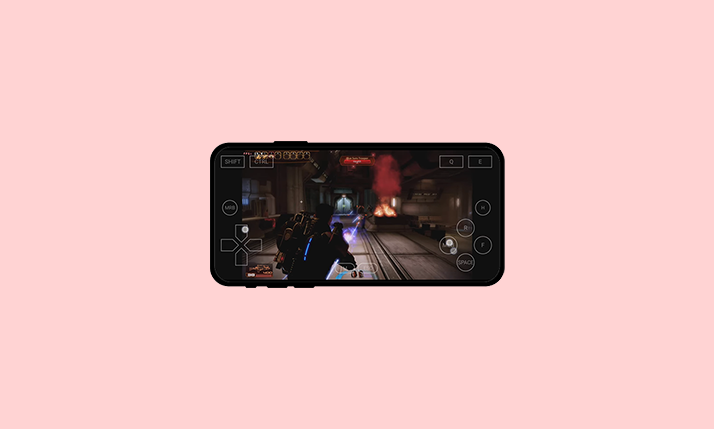
Winlator is a Windows emulator for Android that lets you run many PC games and applications on a phone or tablet, using Wine plus Box86/Box64 and Vulkan. With the latest versions (v10+ and v11 beta), performance and compatibility are much better than early builds, and there is now support for more GPUs, including many Mali devices.
This guide explains what you need, how to install Winlator safely, how to create your first container, how to choose the right graphics driver and DirectX backend, and how to fix common problems.
Winlator.dev is an independent fan and tutorial site. It is not the official Winlator developer. For original releases and changelogs, always refer to the official GitHub or winlator.org.
Recommended Video Tutorials:
1. System Requirements
Winlator is demanding, especially for 3D games. Before installing, check that your device meets these minimums.
Minimum (to experiment with older / lighter games)
- Android 9.0 or newer
- ARM64 CPU (Snapdragon strongly recommended; avoid Huawei/Kirin where possible)
- GPU with Vulkan 1.1+ support
- 4 GB RAM (6 GB recommended)
- At least 2 GB free space for Winlator itself (games will need a lot more)
Recommended (for 3D games and smoother experience)
- Android 11+
- Snapdragon 730 / 720G / 845 or better, with Adreno 618 or better
- 6–8 GB RAM or more
- Minimum 32–64 GB free storage (internal or fast SD)
MediaTek / Exynos with Mali can run some games, but compatibility and performance may be lower.
2. Download Winlator Safely
Always download Winlator from official or original sources to avoid malware or broken builds.
- Official GitHub: https://github.com/brunodev85/winlator/releases
- Official site: https://winlator.org
- Our Site (Safe & Reliable): https://winlator.dev/download
- Trusted forks (for advanced users): winebox64 / Bionic / GlibC builds, etc.
Avoid third‑party APK mirrors unless they point directly to these official pages.
3. Install Winlator APK
1. From GitHub Releases, tap the latest Winlator .apk file to download.
2. Allow installs from unknown sources (one-time step): Go to Settings → Security / Privacy → Install unknown apps. Enable it for your browser or file manager.
3. Install the APK: Open your file manager, go to Downloads, tap the Winlator APK, then tap Install.
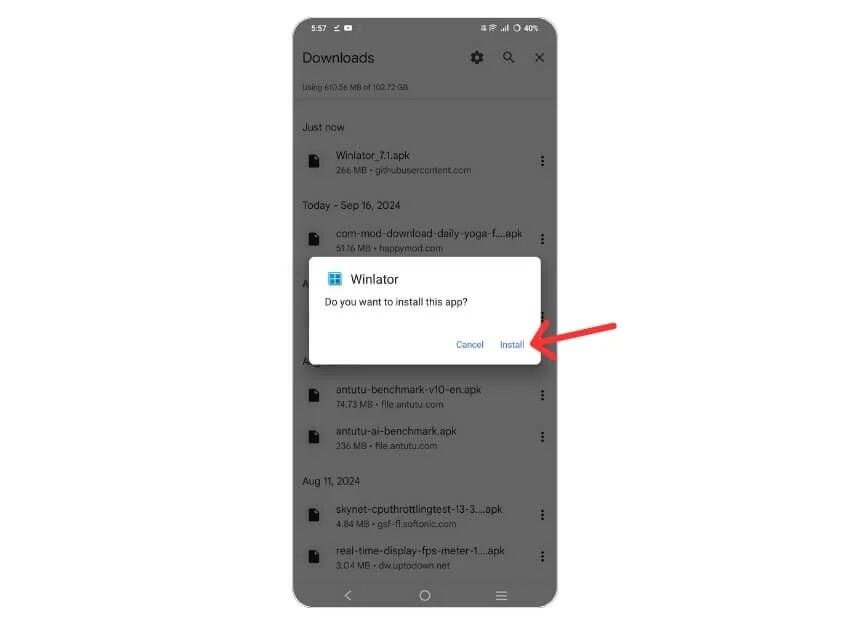
4. First launch: Open Winlator. On first run it will create folders and extract files. This can take a few minutes; let it finish.
No root access is required.
4. Create Your First Container
Containers are isolated Windows “mini‑PCs” inside Winlator. You can create different containers for different games or use cases.
1. Open Winlator.
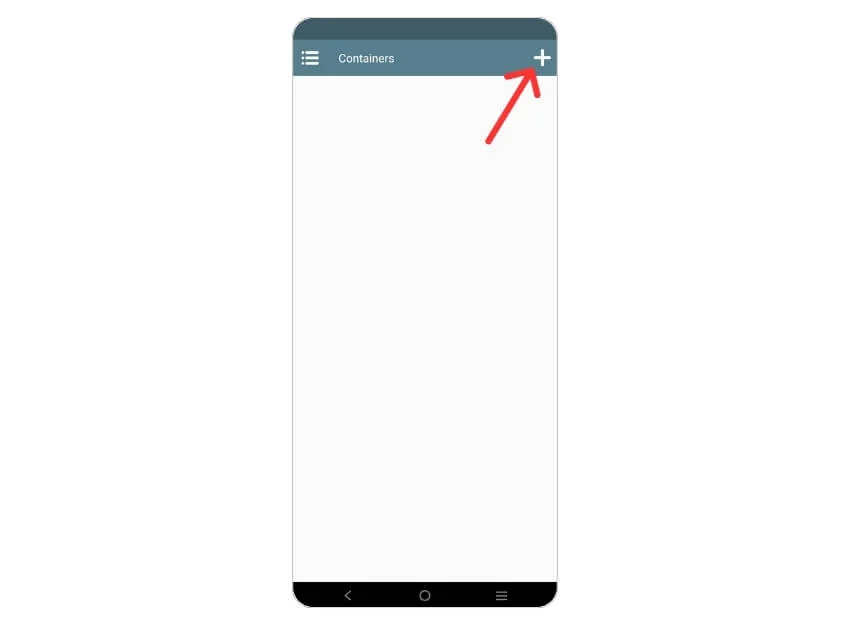
2. Tap the + button to add a new container.
3. Enter a name (for example “Games” or a specific title).
Choose Screen Resolution
Start with a safe resolution and modify later if needed:
- 800×600 – best for performance and compatibility.
- 960×544 – good 16:9 compromise on mid‑range and better devices.
- 1280×720 or higher – only for stronger devices.
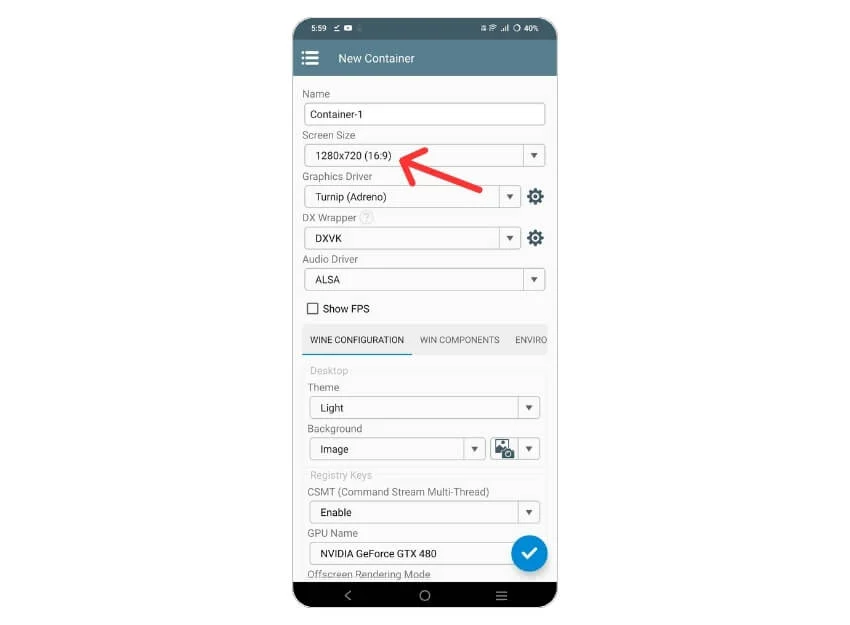
If FPS is low or games stutter, drop resolution down again.
5. Select Graphics Driver
The graphics driver choice is critical for performance.
Typical options (names may vary slightly by build):
- Turnip + Zink (T+Z) – best for Snapdragon / Adreno GPUs, highest performance.
- VirGL – universal option; works on many MediaTek / Exynos / Mali devices but slower.
- LLVMpipe – CPU‑based fallback; only for testing when nothing else works (very slow).
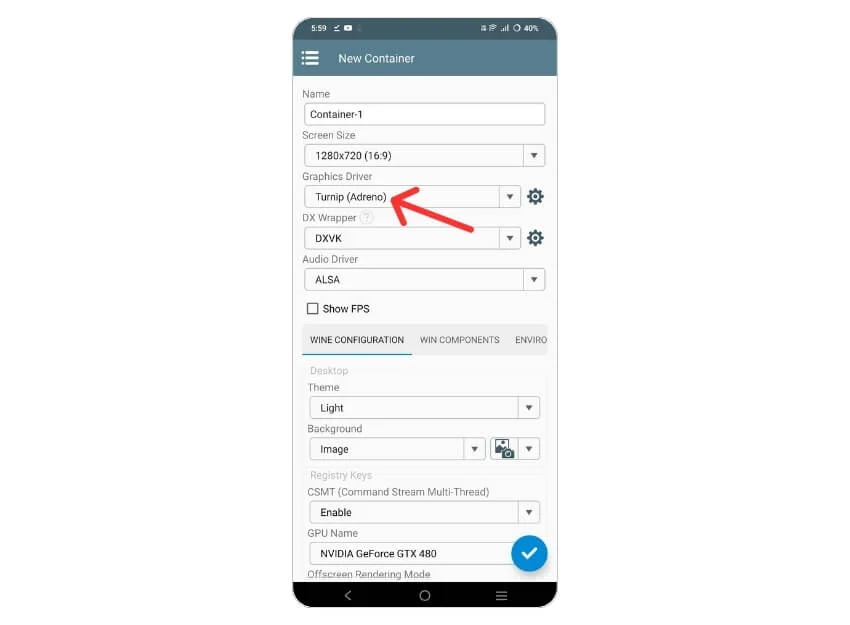
Recommended:
- Snapdragon + Adreno → Turnip / Turnip+Zink.
- Mali or unknown GPU → VirGL first, or specific Mali tuning guides.
6. Choose the DirectX (DX) Backend
Winlator uses different backends to translate DirectX calls to Vulkan/OpenGL.
Common options:
- WineD3D – broadest compatibility, slower; good as a fallback.
- DXVK – best for many DirectX 9, 10, and 11 games; often faster on supported GPUs.
- VKD3D – needed for DirectX 12 titles that can work via Wine.
- Special wrappers (CnC DDraw, dgVoodoo, etc.) – for older DirectDraw / classic games, if present.
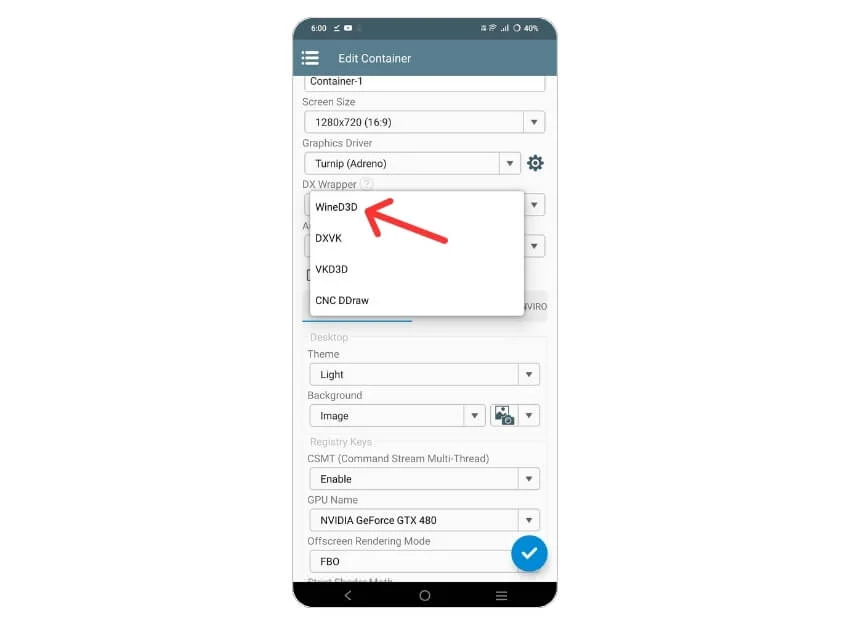
Basic rule:
- Start with WineD3D for general compatibility.
- Test DXVK for supported 3D games; keep it if stable.
- Use VKD3D only when a game requires DX12.
7. Configure Video Memory and Advanced Settings
In container settings → Advanced:
Video Memory
A simple rule:
- 4 GB RAM device → 2048–3072 MB video memory.
- 6 GB RAM device → 3072–4096 MB.
- 8 GB+ RAM device → 4096–6144 MB.
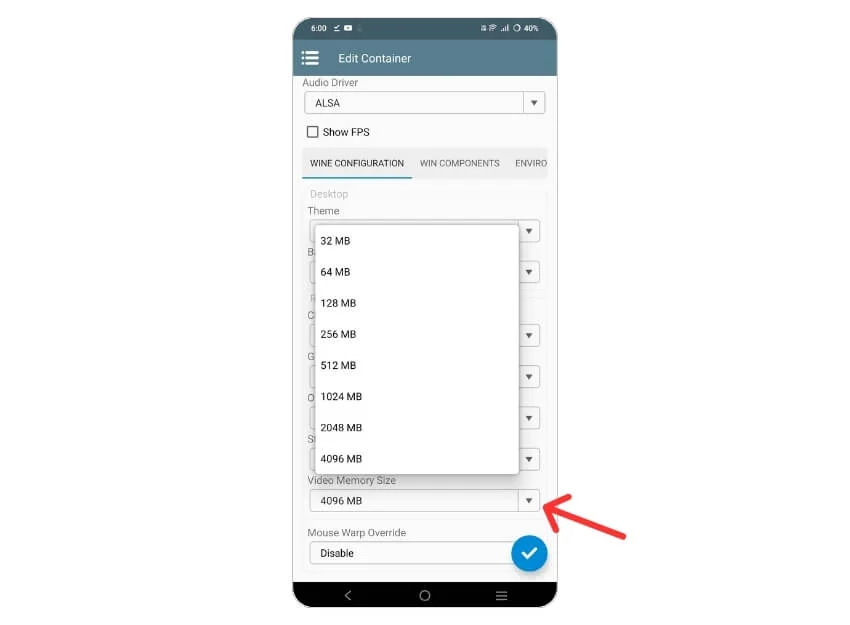
Too high values can cause instability; do not simply match your full RAM.
Box86 / Box64 Preset
Some builds include presets like “Gaming”, “Performance”, or “Stability”.
- Start with the default or “Stability”.
- Switch to “Performance” if games are stable but slow.
- For some engines (for example Unity), a stability‑oriented preset can help crashes.
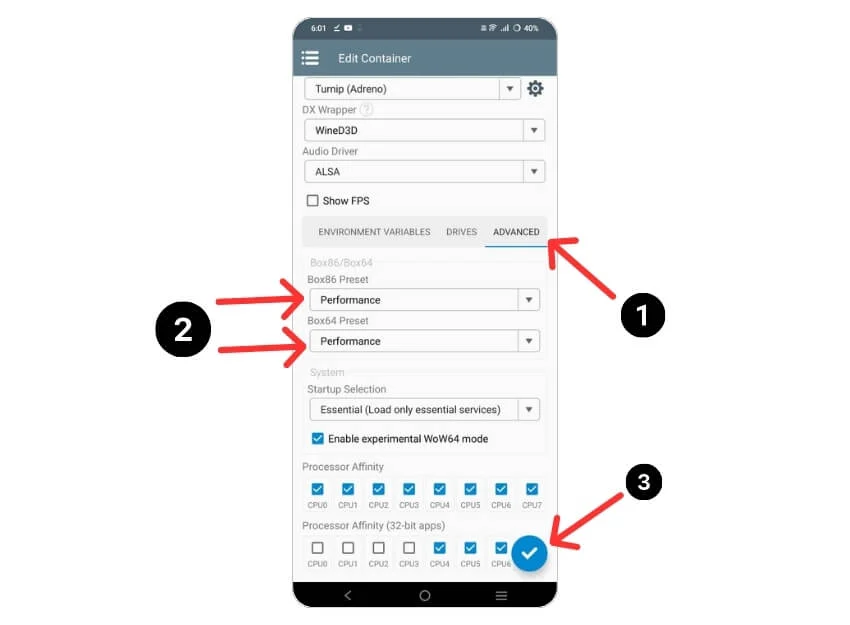
Only use custom environment variables (for example MESA_EXTENSION_MAX_YEAR=2003) when following a specific, trusted guide for certain older games.
8. Save and Test Your Container
Once everything is set:
- Tap Save / Checkmark in the container screen.
- Open the container.
- Use the file explorer inside the Windows environment to locate and install your game (for example from
D:or another path where you placed the installer). - Run the installed game and test performance.
If the game does not start or is extremely slow, go back and adjust resolution, driver, or DX backend.
9. Basic Performance Tips
To get more FPS and fewer stutters:
- Close background apps before launching Winlator.
- Use lower resolution (800×600 or 960×544) first.
- On Snapdragon, keep Turnip up to date when new driver packs are released.
- In games, use low/medium graphics settings, turn off heavy AA and shadows.
- Make sure your phone is not overheating; heat causes throttling and FPS drops.
10. Controller and Input Basics
Winlator supports controllers, keyboard, and mouse.
General steps:
- Pair a Bluetooth controller or connect via USB‑C/OTG.
- Inside Winlator, open input / controls settings and create a profile if your build exposes such a menu.
- In the game, choose the correct controller type (often XInput) and remap buttons if needed.
For detailed controller + keyboard + mouse setup, direct users to your dedicated controller guide page on winlator.dev.
Common Problems and Quick Fixes
Black Screen
- Try a different DX backend (WineD3D vs DXVK vs VKD3D).
- Lower resolution.
- Update to a newer Winlator version if you are on an old build.
Game Crashes or Closes Immediately
- Check if your device meets the minimum for that game.
- Install any required .NET / Visual C++ components in the container.
- Try a different Box64 preset (Stability vs Performance).
Very Low FPS
- Confirm you are using GPU acceleration (Turnip / VirGL, not LLVMpipe).
- Drop resolution and in‑game details.
- Close background apps and keep device cool.
No Sound
- Check the device volume and game sound options.
- In some builds, changing audio backend (ALSA vs PulseAudio) inside container may help (mainly in GlibC/Bionic mods).
Next Steps
After you have a stable container and a game running:
- Create separate containers for very different games (for example, one for old DX9 titles, one for heavier games). Read our dedicated guide on adding and playing PC games on Winlaror.
- Explore your game library and note which titles run well; use or build a “Best Games on Winlator” list.
- If you use a Mali device, read dedicated Mali or Bionic/GlibC guides for better results.
Winlator continues to improve, especially around GPU support, performance presets, and quality‑of‑life features. Keeping both Winlator and your drivers up to date will give you the best possible experience on Android.